Paperima is a web app that can be accessed directly by visiting its webpage. For infrequent use, this is sufficient. However, if you use it often and want offline access, Paperima can be installed on your device thanks to PWA (Progressive Web App) technology.
PWA technology allows a website to be installed on your device and function like a native application. The advantages are that you get an app icon on your desktop or home screen, faster access, and most importantly, the ability to use its core features even without an internet connection.
Important: Currently, PWA technology is most native and optimally integrated when using a Chromium-based browser (such as Google Chrome, Microsoft Edge, etc.). Unfortunately, for Firefox and/or Safari users, this feature is not fully supported, and you may not have the best installation experience.
How to Install on Desktop
a. Via the Paperima Web App
- Open the Paperima web app and go to the Preferences tab.
- Scroll down until you find the Install Application button.
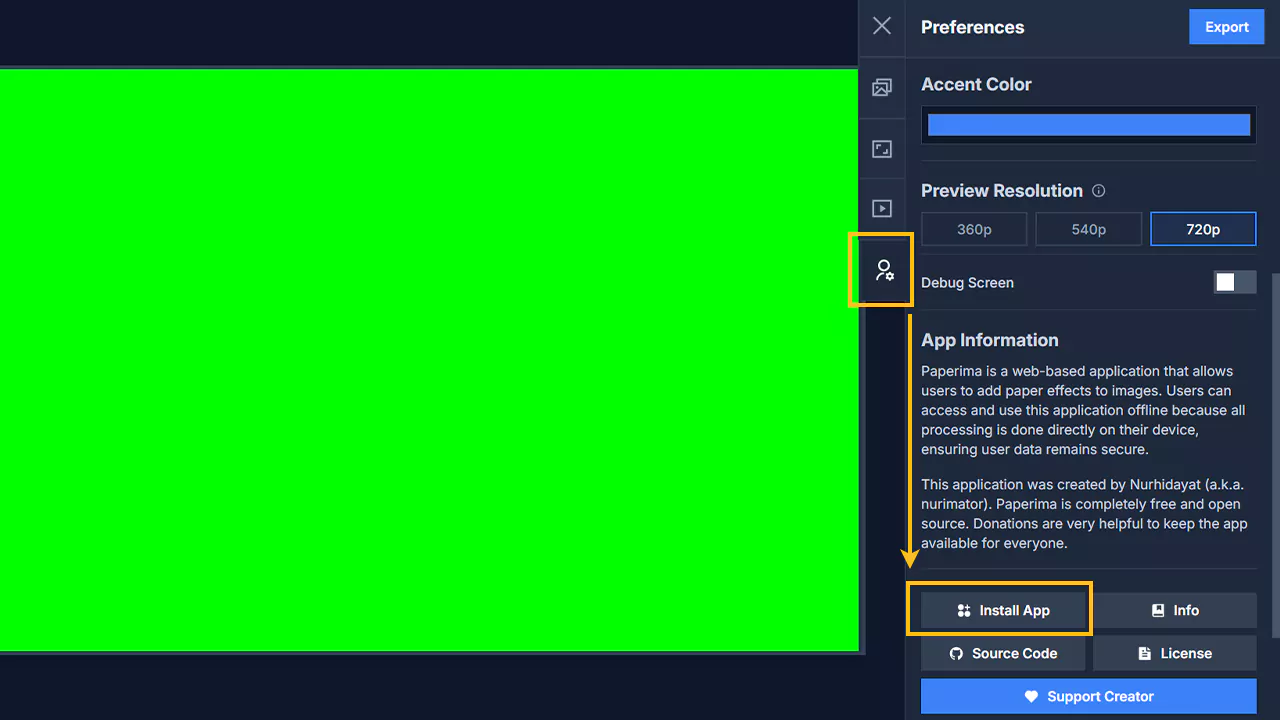
- Click the button. A confirmation dialog from your browser will appear asking for your permission.
- Click Install. The Paperima application will be installed and will appear in your computer’s program list.
b. Via the Browser’s Address Bar Icon
- Open the Paperima web app in your browser.
- Look at the top right of the address bar; you will find an installation icon, which usually looks like a computer screen with a downward arrow.
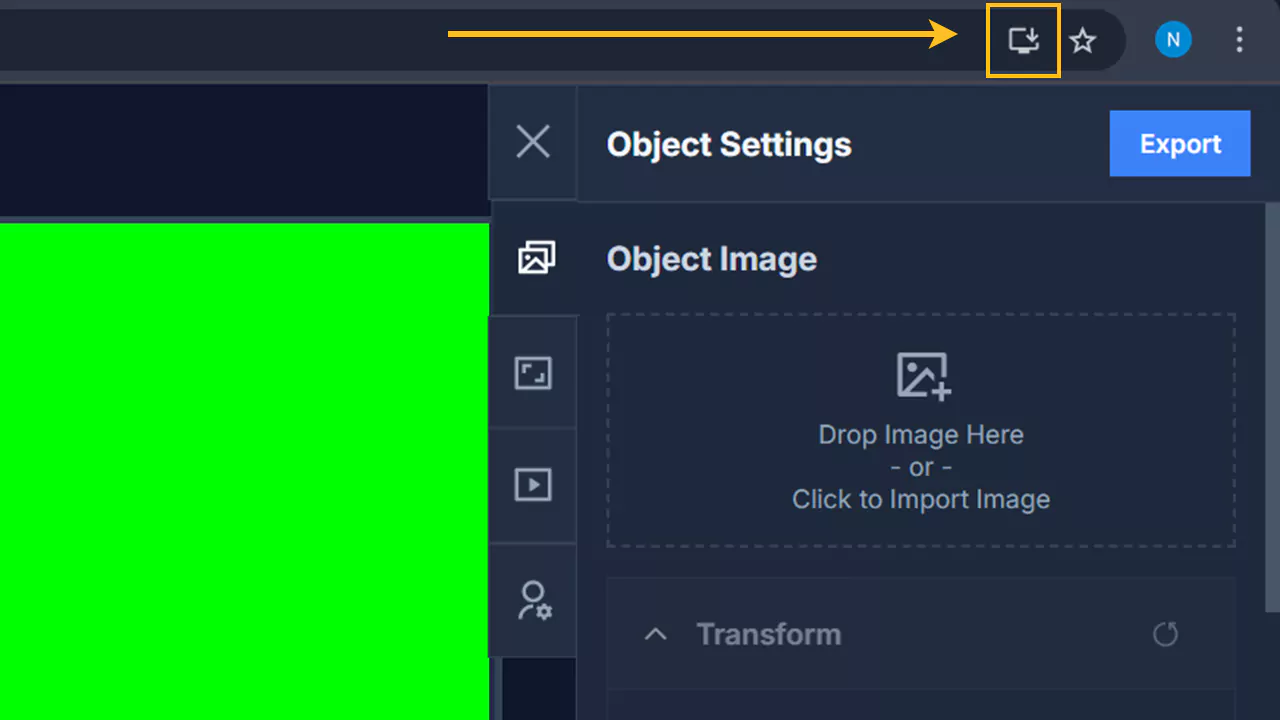
- Click that icon to initiate the installation process.
- A confirmation dialog will appear; press Install to proceed, and Paperima will be installed as a standalone application.
c. Via the Browser Menu
- Click the three-dot menu (⋮) in the top-right corner of the browser to open the main menu.
- Navigate to the Save and share option or a similar menu item.
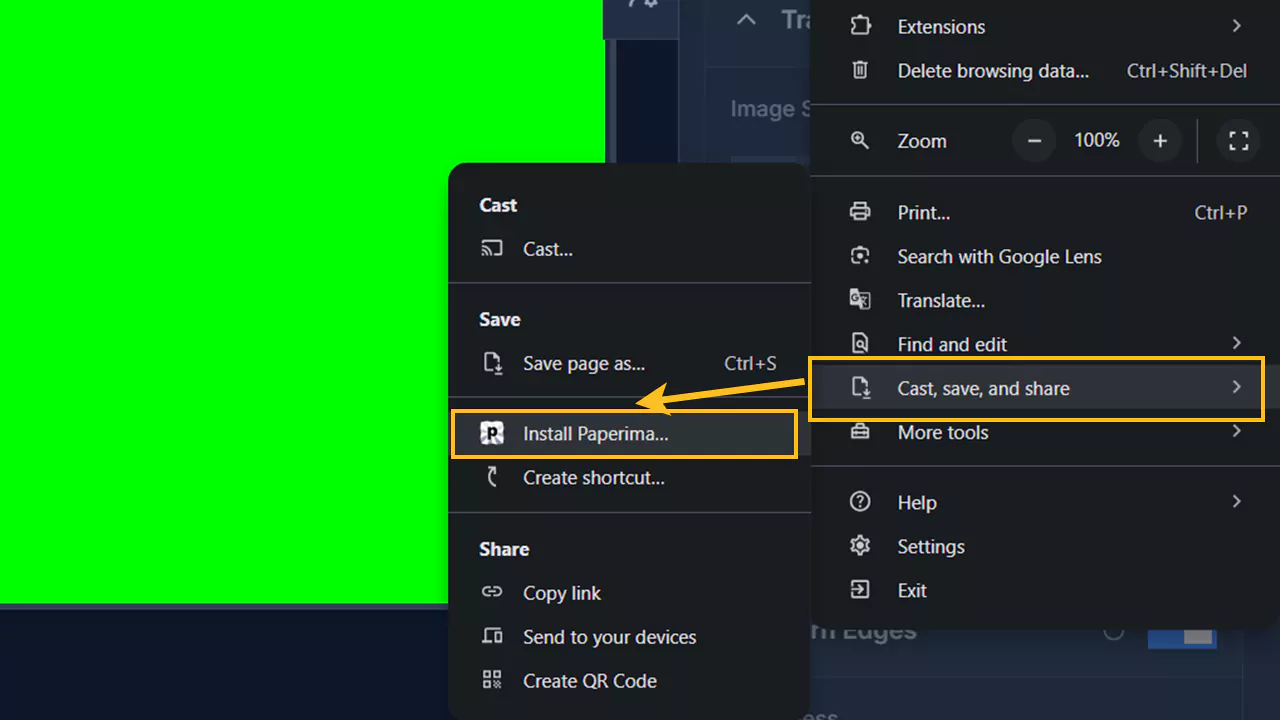
- From the submenu that appears, click on Install Paperima.
- A confirmation dialog will appear; click Install to complete the installation.
How to Install on Android
a. Via the Paperima Web App
- Open the Paperima web app in your phone’s browser and go to the Preferences tab.
- Scroll down until you find the Install Application button.
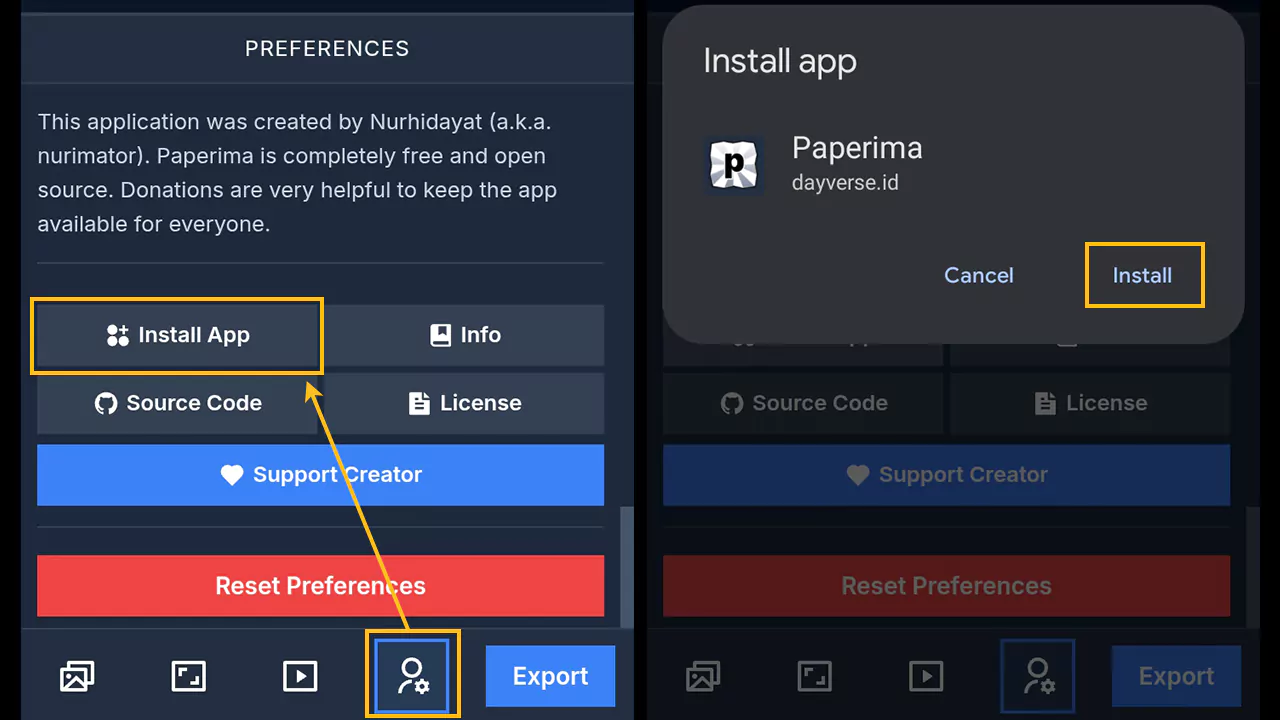
- Click the button, and a confirmation dialog will slide up from the bottom of the screen.
- Click Install to add Paperima to your phone.
b. Via the Browser Menu
- Open the Paperima web app in your phone’s browser.
- Click the three-dot menu (⋮) in the top-right corner to open the options.
- Find the Add to Home Screen option. If two choices appear (‘Install’ and ‘Add to Home Screen’), choose Install to get full app functionality.
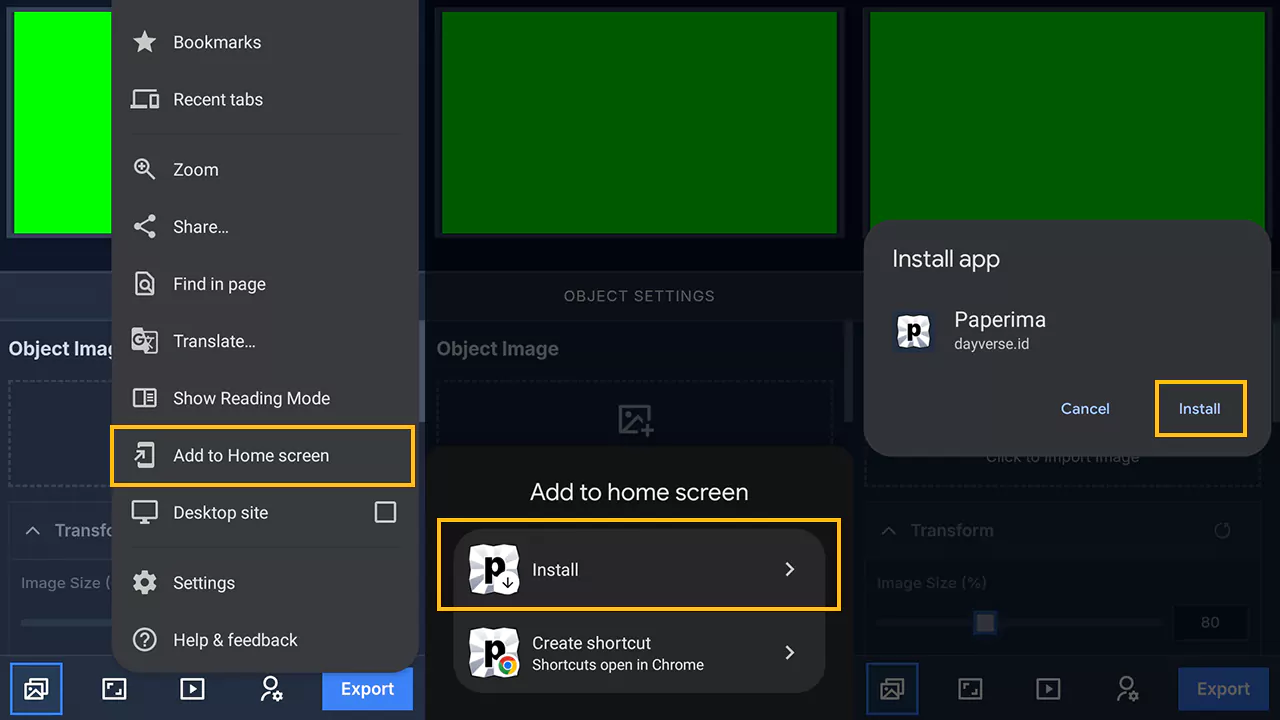
- A confirmation dialog will appear, showing the app’s name and icon.
- Click Install. The Paperima icon will be automatically added to your phone.