Have you been stuck with an embarrassing email address from when you were young? Maybe back then you thought using a random or silly nickname as your email address was brilliant, but now every time you need to give your email for professional purposes, you wish you could hide. Many people feel trapped with their old email addresses that are either embarrassing or just don’t fit anymore, and end up being forced to create a new, more professional Gmail account.
The problem is, creating a new account means having to go through the hassle of migrating all your data, from contacts and important emails to various service accounts already registered with your old email. Not to mention if your old Google account already has plenty of YouTube history, a Google Drive full of files, or paid subscriptions. Moving to a new account isn’t just inconvenient—it also means losing the digital footprint you’ve built over many years.
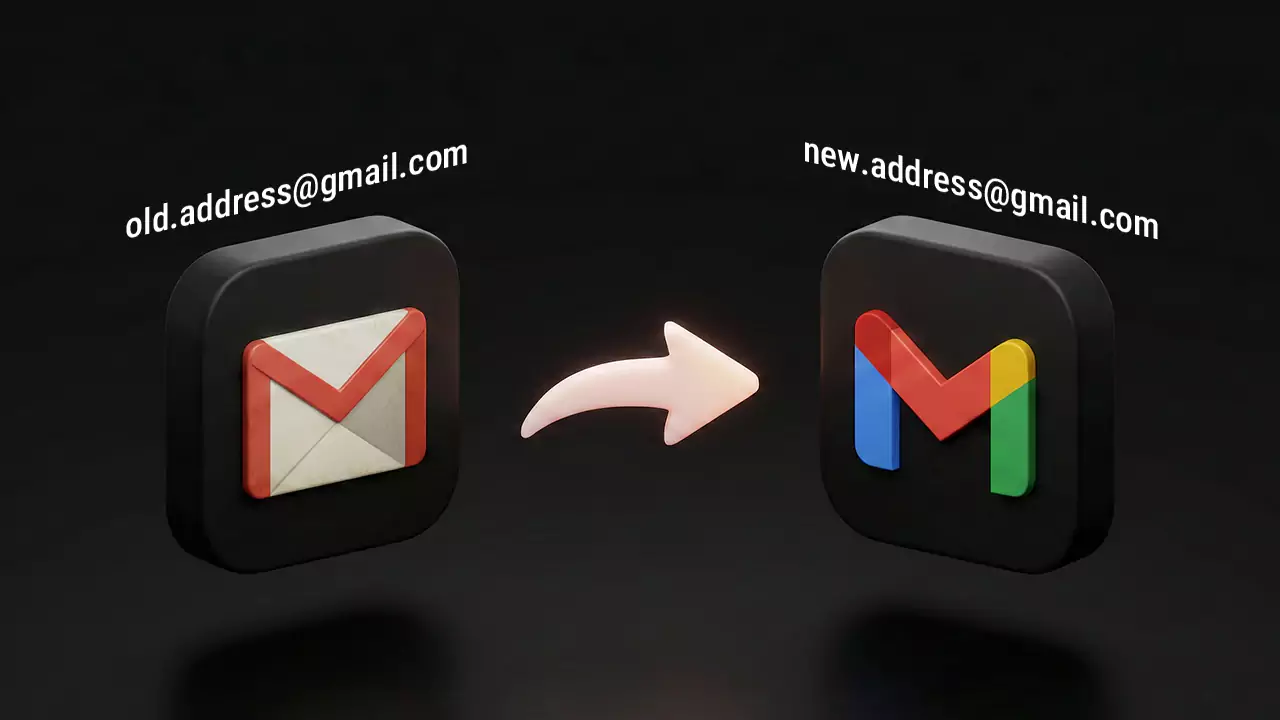
The good news is that Google now has a feature that allows you to change your Gmail address without needing to create a brand new account from scratch. This feature can truly be called a game-changer for those who’ve been wanting to change their email address but didn’t want to deal with the hassle. With this feature, you can keep using all your existing Google services while getting a more professional email address.
How Does It Work?
Unlike the old way that required you to create a new account and migrate data one piece at a time, this feature directly changes the email address on your existing account. Think of it like changing your name on your ID card—you’re still the same person, just with a different name.
Most importantly, all your data remains safely stored in the same account. This feature only changes the address itself, not the account contents. All your old emails, contacts, files in Google Drive, YouTube playlists, and YouTube Premium or Google One subscriptions remain intact exactly as they were. Nothing gets lost or changed.
Even better, your old address doesn’t just disappear. It becomes an “alternate email” that remains active. This means you can still receive emails sent to your old address. So if friends or services still send emails to your old address, those emails will still arrive in your inbox. You don’t need to worry about missing important emails because people don’t yet know your new address.
It’s even more flexible than that—you can even choose which address to use when sending emails. This is incredibly useful if, for example, you want to use your new professional address for work matters but still want to use the old address that’s already known to your personal circle or old communities. Everything can be done in a single account without logging out and in multiple times.
Steps to Change Your Gmail Address
Keep in mind that this feature might not be available to everyone yet because Google is rolling it out gradually. So if you don’t see this option in your account yet, don’t panic. There’s a good chance it will appear within a few weeks or months. But there’s no harm in checking now—who knows, you might be one of the lucky ones who can access it early.
Here’s how to check and change it:
-
Open Gmail or Google, then click your profile picture in the top right corner of the screen.
-
Select “Manage Your Google Account”.
-
In the menu on the left side, click “Personal Info”.
-
Click on the “Email” section, then select “Google Account Email”.
-
If there’s a pencil icon or “Change Google Account Email” option, it means this feature is already active in your account. If it’s not there yet, you’ll need to wait a bit longer for Google to activate it for you.
-
Enter your desired new email address in the available box. Make sure the address you choose isn’t already taken by someone else.
-
Click the button to change your email and follow the subsequent confirmation steps. Usually, Google will ask you to verify through your phone number or an alternate email to ensure this is really you making the change.
After completion, the account name in the top right corner will immediately change to your new address. The process is quite fast, usually taking just seconds or at most a few minutes. After that, you can immediately start using the new address to log in or tell others about your new email address.
Limitations You Should Know About
Before making the change, it’s good to understand Google’s rules so you won’t be disappointed or regretful later. Google has fairly strict limitations for this feature, and it’s important to understand them before you make your decision.
First, about frequency. You can only create a new Gmail address once every 12 months. So if you change your email address today, you’ll have to wait a full year before you can change it again. This isn’t by calendar month, but a full 365 days from the date you last made the change. Google likely implemented this rule to prevent misuse or spam.
Second, there’s a maximum limit. You can only make this change a maximum of 3 times in the lifetime of your account. So in total, with a single Google account, you can only have a maximum of 4 different email addresses. Your first address is the original one created when you set up the account, and then you can change it 3 more times. After that, you can’t change it ever again. So think carefully before making a change—don’t waste a change on an address that turns out to be something you don’t like either.
That’s why before making a change, make sure your new address is one you really love and want to use long-term. Don’t hastily switch to a new address only to realize a few months later that it’s “not as cool as I thought,” but then be unable to change again because you have to wait another year.
Potential Issues & Solutions
There are a few small bugs or glitches that might occur after the address change. But don’t worry—the solutions are quite simple and don’t require any special technical skills. Most of these issues happen because Google’s system needs a few moments to fully synchronize after the email address change.
The first one is an “Invalid From Address” error appearing. When you try to send an email from your new address, you might get an error message saying the sender’s address is invalid or not recognized by the system. This can be a bit alarming if you urgently need to send an important email, but the solution is actually very simple. Just sign out of your Google account and then sign back in. Usually, this problem occurs because your browser’s cookies or cache still have your old address information stored. Once you log in again, the browser will refresh all the data and your new address will be recognized correctly.
The second fairly annoying issue is when the Gmail page suddenly starts refreshing itself repeatedly and automatically. Imagine you’re reading an email or trying to reply, and suddenly the page reloads by itself multiple times. This is clearly frustrating and makes it impossible to work comfortably. Fortunately, the solution is also simple. Just close the Gmail tab or even close your entire browser if needed, then open Gmail again from scratch. This auto-refresh issue usually disappears immediately after you restart your browser.
The third issue is more about system behavior that’s a bit odd but actually normal. If you try to send a test email to your old address to verify it still works, it might not appear in your Inbox the way you’d expect. Instead of going to your Inbox, it goes straight to your “All Mail” folder. This actually isn’t a bug—it’s just how Google’s system handles alias or alternate emails. So if you don’t find your test email in your Inbox, don’t immediately panic thinking it’s lost. Check the “All Mail” folder and it’s very likely there.
Finally, if you’re used to using third-party email applications like Microsoft Outlook, Apple Mail, Thunderbird, or other email apps on your smartphone, you might need to reconfigure some settings. Particularly the SMTP (Simple Mail Transfer Protocol) settings that control email sending. You’ll need to update the sender identity in these applications so you can send emails using your new address. The process usually involves going to the account settings in that application and updating the email information from the old address to the new one. This process is somewhat technical, but most modern email applications usually have fairly clear step-by-step guides.
Can You Switch Back to Your Old Email?
A common question is: what if you regret it or change your mind after switching your email address? Or maybe you realize your old address is actually more memorable and better known? Don’t worry—Google gives you full flexibility here.
The answer is absolutely yes. If you want to make your old address your primary email again, the process is very easy and, most importantly, can be done anytime without any time restrictions. Unlike when you switched to a new address where you had to wait a year, if you want to go back to your old address, you can do it immediately—even just an hour after you made the change.
The process is also simple:
-
Go back to the “Google Account Email” menu like in the steps above.
-
Look at the “Alternate Emails” section. There you’ll see your old email address which is now an alternate email.
-
Click the “Make this your Google account email” option next to your old email address.
Once you click it, the old address becomes your primary email again, and the new address you just switched to becomes an alternate email. The process is instant, and you can switch back and forth between your addresses as much as you like, without losing any data whatsoever.
Conclusion
The Gmail address change feature is a long-awaited solution, especially for those who’ve wanted to have a more professional email address for a long time but didn’t want to deal with the hassle of switching accounts. With this feature, you no longer need to create a new account, don’t need to migrate thousands of old emails, and don’t need to update your email address on hundreds of already-registered services.
What makes this feature even more appealing is its flexibility. Your old address remains active as an alternate, so you don’t need to worry about losing touch with people who only know your old address. Emails still arrive, and you can even choose which address to use depending on the situation. Want to be professional with your new address, want to be casual with your old one—everything can be done in a single account.
But remember, use this feature wisely. With the limitation of only being able to change your address 3 times in your lifetime and needing to wait a year between changes, make sure you’re confident in your choice of new address. Don’t hastily switch and then regret it later because the new address you chose also doesn’t meet your expectations.