For creative coders and front-end developers, creating stunning animations in HTML5 Canvas is only half the battle. The other half involves facing a series of technical questions that often prove frustrating: “How do I export a Three.js animation as a video directly in the browser without a server? Can video conversion happen purely client-side? Or simply put, how do I save this website animation as an MP4 file?” For years, we’ve been stuck with the built-in MediaRecorder that only produces WebM format, or we’ve been forced to send data to a server (Node.js/Python) just to render video. This approach wastes bandwidth and increases server costs unnecessarily.
However, web technology has evolved dramatically. Is it possible to create high-quality MP4 files directly in the browser without a backend? The answer is a resounding yes. Let’s explore three technologies, ordered from the most cutting-edge to the oldest available solutions.
1. MediaBunny
When developers search for modern solutions to export canvas animations to high-quality MP4 files using JavaScript, they often encounter older tutorials recommending mp4-muxer. While that library served its purpose in the past, there’s now a more powerful alternative worth considering.
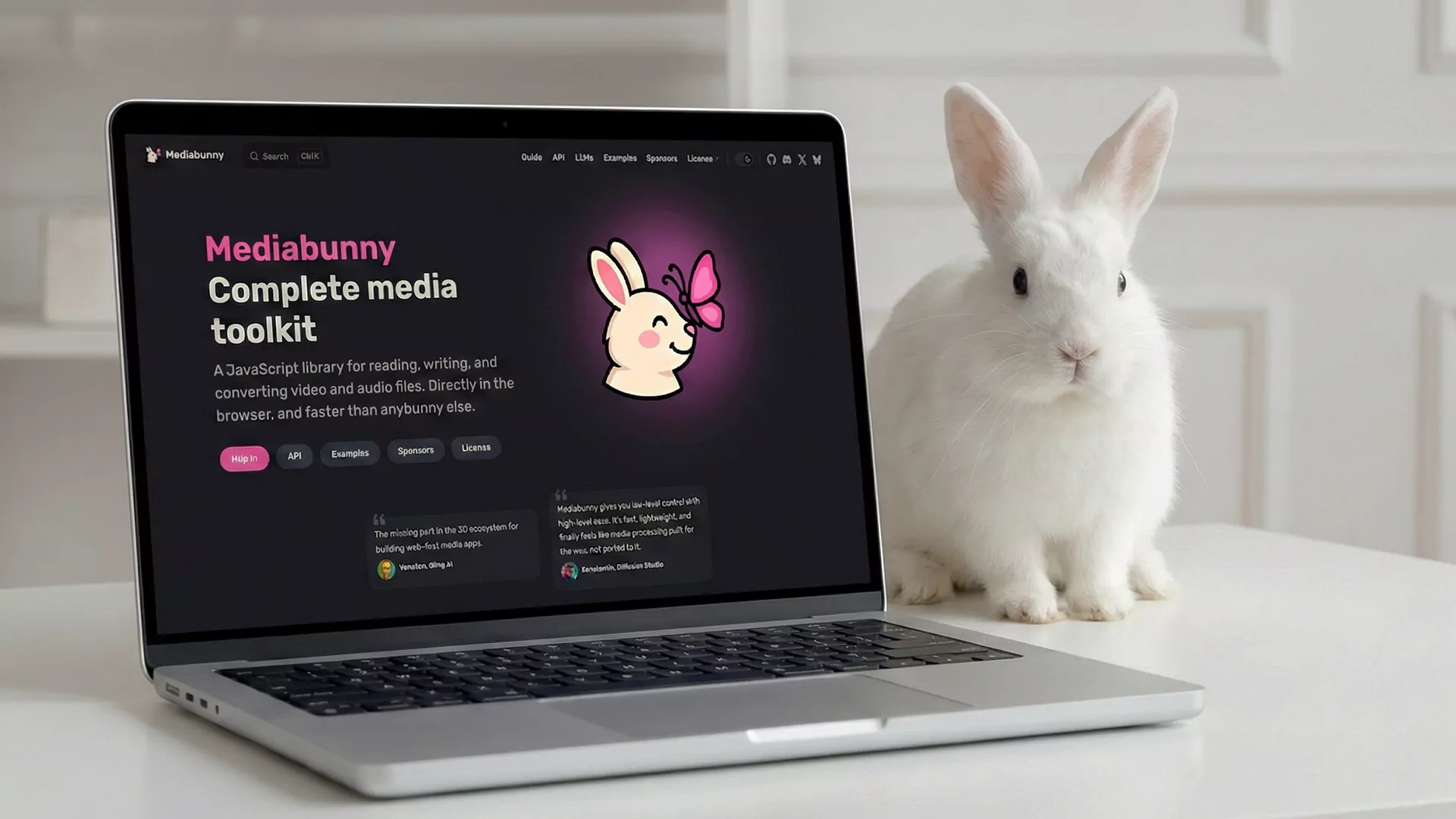
MediaBunny represents the new powerhouse in web media manipulation. Based on its latest features, it’s not just a simple muxer but rather a complete full-stack media library that works both in the browser and on Node.js. It supports reading, writing, and converting various media formats directly in the browser with hardware acceleration through the WebCodecs API.
Why Is This the Top Choice?
Unlike older libraries limited to a single format, MediaBunny provides total flexibility. You can record Canvas frame-by-frame and export it to almost any popular format your clients might request.
Key Advantages
-
MediaBunny offers universal format support, going far beyond just MP4 with H.264 encoding. It supports containers like MOV, MKV, TS, OGG, and even transparent WebM, which proves incredibly useful for video overlays.
-
The library is hardware accelerated, utilizing the WebCodecs API for exceptionally fast encoding and decoding that leverages the user’s GPU. This means your animations can be processed much more efficiently than with software-only solutions.
-
It includes built-in editing tools right out of the box. You have access to features for resizing, cropping, rotation, and trimming. This means you can edit your canvas recording directly in memory before the user downloads it, streamlining your entire workflow.
-
MediaBunny is isomorphic with Node.js support, meaning the same code you write for the browser can run on a Node.js backend if needed. This flexibility is invaluable for projects that might need to scale or shift processing between client and server.
-
Finally, it’s an audio powerhouse, supporting multiple audio tracks and subtitles simultaneously, making it suitable for complex multimedia projects.
Drawbacks and Considerations
-
The primary limitation is browser support. MediaBunny relies heavily on the availability of the WebCodecs API in modern browsers, specifically recent versions of Chrome, Edge, and Safari. Older browsers simply won’t be able to use this technology.
-
Additionally, it requires HTTPS only. WebCodecs demands a secure context, meaning it will only work on HTTPS connections or localhost during development. This isn’t usually a problem for production websites, but it’s worth keeping in mind during your development workflow.
2. CCapture.js
CCapture.js has long been the reliable solution for developers dealing with choppy canvas recordings. It addresses this issue through its frame-by-frame capture approach combined with the Whammy encoder, ensuring smooth playback regardless of how complex the animation might be.
This library has earned legendary status among p5.js and three.js users over the years. Despite its age, it remains a solid option if your target audience uses older browsers that don’t yet support WebCodecs.
When Should You Use It?
CCapture.js makes sense when you don’t particularly care about MP4 format and just need quick documentation or GIF output. It’s also the right choice when you need to support legacy browsers that your audience might still be using.
Key Advantages
-
Like MediaBunny, CCapture.js is deterministic, recording frame-by-frame. No matter how heavy your animation is, the final result will be smooth and consistent. This frame-by-frame approach eliminates the dropped frames that plague real-time recording methods.
-
It can export to several formats with ease. You can quickly export to GIF, PNG sequences, or standard WebM without much configuration.
-
The setup is remarkably simple, being almost plug-and-play with requestAnimationFrame animation loops. If you already have a working canvas animation, integrating CCapture.js typically takes just a few lines of code.
Drawbacks and Considerations
-
The biggest problem is no native MP4 support. You’ll only get WebM or GIF output, neither of which is universally popular. To convert to MP4, users must perform manual conversion using external tools.
-
Maintenance is another concern. The main repository hasn’t been updated in quite some time, which means bugs don’t get fixed and newer browser features often aren’t leveraged. This makes it less future-proof than actively maintained alternatives.
-
It’s also memory intensive. For longer durations, CCapture tends to consume significant browser RAM because it accumulates blobs in memory. This can cause performance issues or even crashes on devices with limited resources.
3. FFmpeg.wasm
Let’s be honest, Avoid this if at all possible.
FFmpeg.wasm is an impressive technical achievement that brings FFmpeg to the browser through WebAssembly, but using it solely to record Canvas is an extremely over-engineered and resource-inefficient approach.
If you genuinely need heavyweight transcoding features or very specific video formats that MediaBunny doesn’t support, run native FFmpeg on a server instead of the WebAssembly version. Sending data to a backend server makes far more sense than forcing your user’s browser to perform this heavy computation.
Why You Should Avoid It Client-Side
-
First, it’s not native. This is a software emulation running in the browser. Browsers aren’t designed to perform video encoding this heavy without direct hardware access, which means performance suffers dramatically.
-
The user experience is poor. Users must download a library that’s over 25MB at the start, then wait through a slow rendering process that will make their laptop run hot and their fans spin up. This creates a frustrating experience that reflects poorly on your application.
-
Make this your absolute last resort, because the two methods above are far superior. Only use FFmpeg.wasm if you need specific features that only FFmpeg possesses (like legacy codecs or advanced video filters) and using a server backend simply isn’t possible for your particular situation.
Conclusion: Which One Should You Choose?
The decision ultimately depends on your specific development needs.
If you need to export MP4 or MOV files, want editing features, and require high performance, MediaBunny is the clear winner and the best choice overall. It represents the modern approach to client-side video processing and takes full advantage of current browser capabilities.
If you need to create GIFs or WebM for older browsers, CCapture.js remains a reliable option. While it’s showing its age, it still works well for its intended purpose and maintains good compatibility with legacy systems.
If you need unusual and heavy FFmpeg features, use native FFmpeg on a server backend instead. Don’t use the WebAssembly version in the browser, as it creates more problems than it solves.
The web continues to move toward native desktop-like capabilities. With the arrival of WebCodecs and powerhouse libraries like MediaBunny, the line between web applications and native applications grows increasingly thin. We can now process, edit, and export professional media directly in the user’s browser without requiring any server infrastructure.
Are you ready to upgrade the export features in your web application? The tools are available, the technology is mature, and the only limitation is our willingness to adopt these new approaches. By choosing the right tool for your specific needs, you can create powerful, efficient media export functionality that runs entirely client-side, giving your users a seamless experience while saving you server costs and complexity.