This guide will cover how to perform inference with VibeVoice Large Quantized 8-bit (Q8) on Google Colab for free. VibeVoice is an innovative open-source text-to-speech (TTS) framework developed by Microsoft Research to generate expressive, long-form multi-speaker conversational audio, such as podcasts up to 90 minutes with a maximum of 4 different speakers.
Microsoft has disabled the official VibeVoice GitHub repository due to concerns about potential misuse of high-quality synthetic voice technology for deepfakes, fraud, or spreading disinformation. However, the open-source nature of VibeVoice has enabled the community to fork the repository and continue developing it. Many developers have created copies and even produced more efficient quantized versions of the original model, providing flexibility for users with various hardware resources.
Available VibeVoice Model Variants
Here are several VibeVoice model variants currently available in the community:
Original Models:
- VibeVoice-1.5B (microsoft/VibeVoice-1.5B): Approximately 5.4 GB, a lighter base model sufficient for most needs.
- VibeVoice-Large (aoi-ot/VibeVoice-Large): Approximately 18.7 GB, a 7B parameter model with the highest quality but requires very large VRAM.
Quantized Models:
- VibeVoice-Large-Q8 (FabioSarracino/VibeVoice-Large-Q8): Approximately 11.6 GB, uses 8-bit quantization that maintains nearly all original audio quality while reducing VRAM requirements from 18.7 GB to 11.6 GB. This model uses selective quantization techniques where only 52% of parameters are safely quantized, while the remaining 48% stay in full precision to preserve critical audio components.
- VibeVoice-Large-Q4 (DevParker/VibeVoice7b-low-vram): Approximately 6.6 GB, a 4-bit quantization version that is much lighter and can run on GPUs with smaller VRAM, although with slight audio quality degradation.
The availability of these various variants gives users flexibility to choose trade-offs between audio quality, memory requirements, and inference speed according to their hardware resources.
Google Colab as a Free GPU Access Solution
Although quantized versions have significantly reduced VRAM requirements, many users still lack access to adequate GPUs. Mid-range GPUs like the RTX 3060 or 4070 Ti with 12 GB VRAM remain a substantial investment. Online platforms like Hugging Face have limitations with their free tier that restricts the number of inferences, so users typically reach the limit after just a few audio generations.
This is where Google Colab becomes an ideal solution. Google Colab provides free access to NVIDIA T4 GPUs with 15 GB VRAM, which is more than enough to run the VibeVoice Large Q8 model that only requires 12 GB. The Colab free tier has usage time limitations of a few hours per day, but is far more generous compared to other platforms. What makes Colab attractive is its ability to run Jupyter notebooks directly in the browser without any installation, allowing users to write code, execute it, and see results in real-time by leveraging Google Cloud hardware for free.
Step-by-Step Guide to Running VibeVoice on Google Colab
Below is a complete guide to running VibeVoice using Google Colab. Make sure you have a Google account to access Google Colab for free.
1. Accessing the Google Colab Notebook
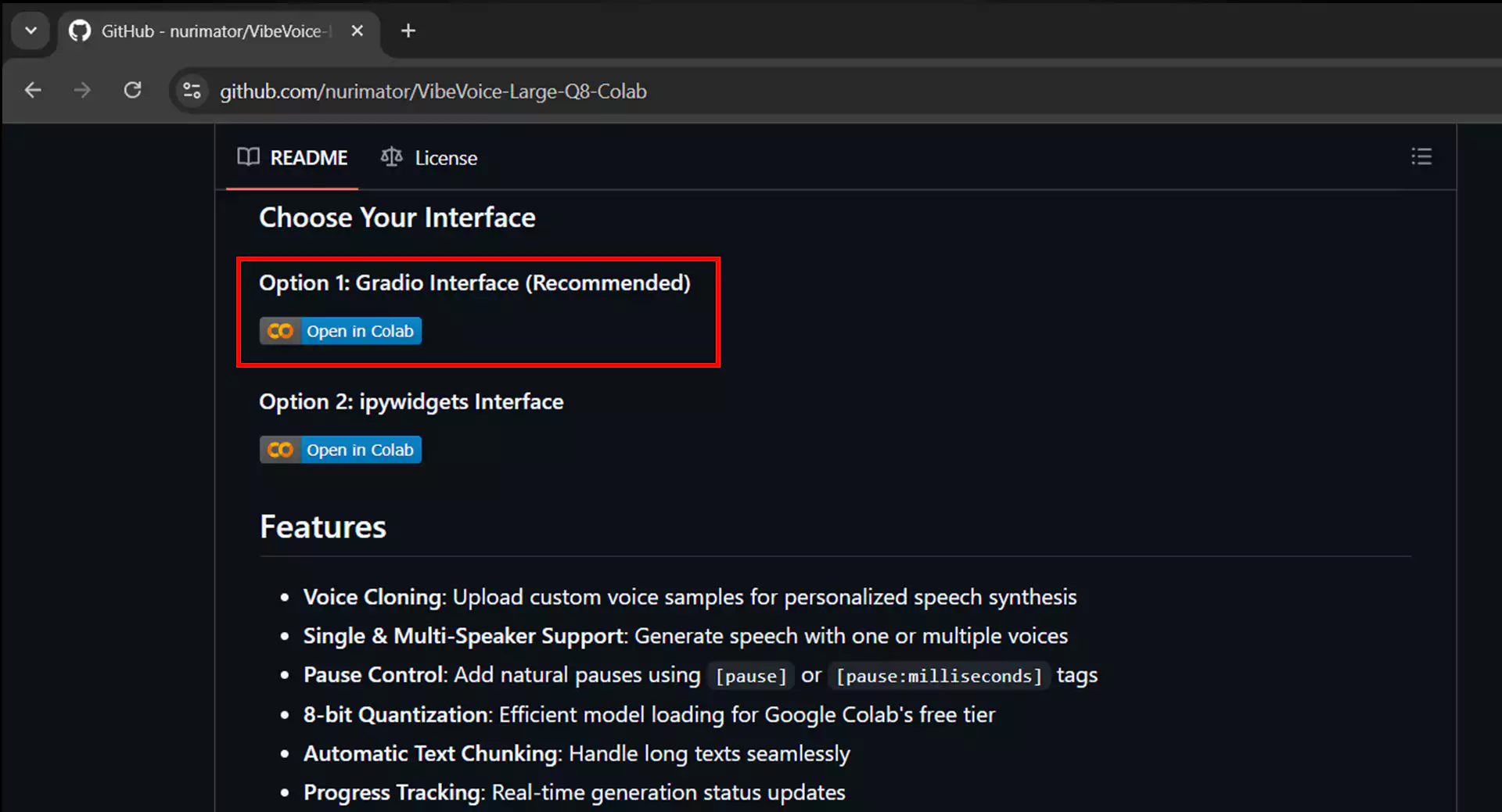
Visit the VibeVoice repository link specifically prepared for Google Colab at https://github.com/nurimator/VibeVoice-Large-Q8-Colab. Scroll down until you find two inference options: Gradio interface and IPyWidget interface. We recommend choosing the Gradio interface as it is more user-friendly. Click the Open in Colab button in that section, and you will be directed to the Google Colab page with a ready-to-use notebook.
2. Setting Up GPU Runtime
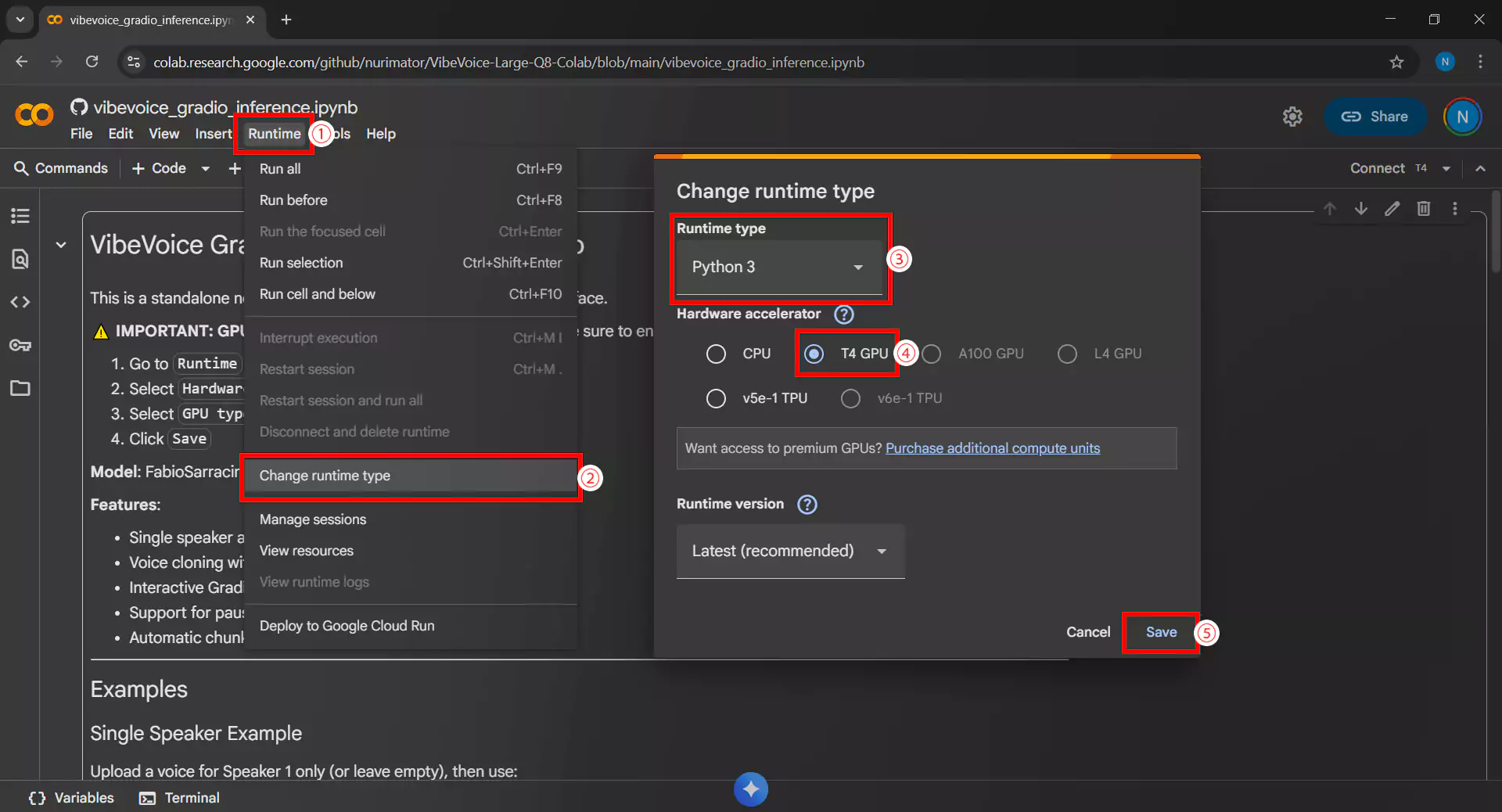
Make sure to use a runtime with GPU to run the VibeVoice model. Here’s how:
- Click the Runtime menu then Change runtime type
- In the Hardware accelerator section, select T4 GPU
- Ensure Runtime shape is set to Standard
- Click Save to save the settings
- Also make sure the environment uses Python 3
3. Running All Cells
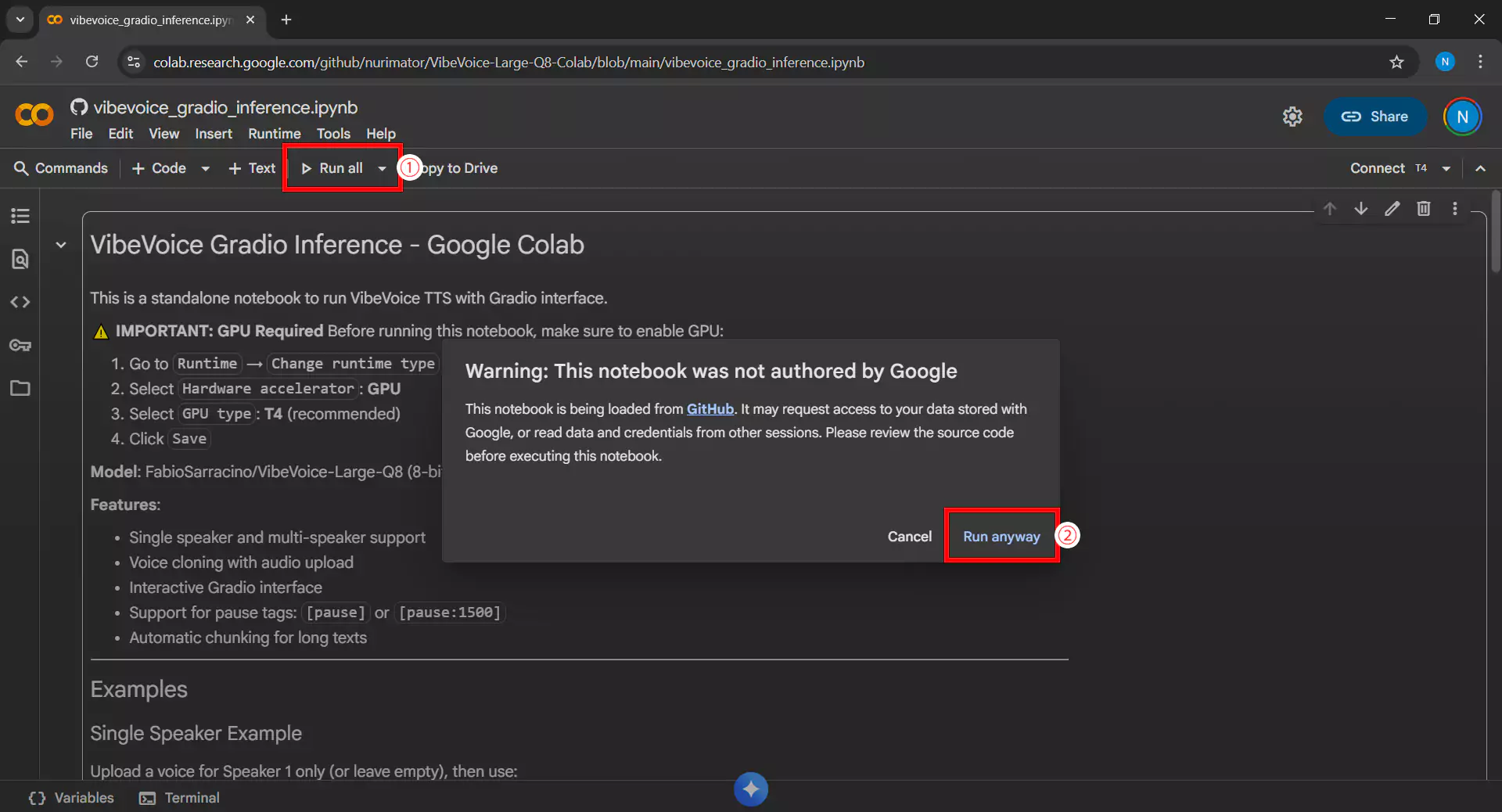
Click Run all cells or use the Ctrl+F9 shortcut to run all code in the notebook sequentially. If a warning appears requesting access permission or security confirmation, click Run anyway or Allow to continue the process.
4. Waiting for Download and Setup Process
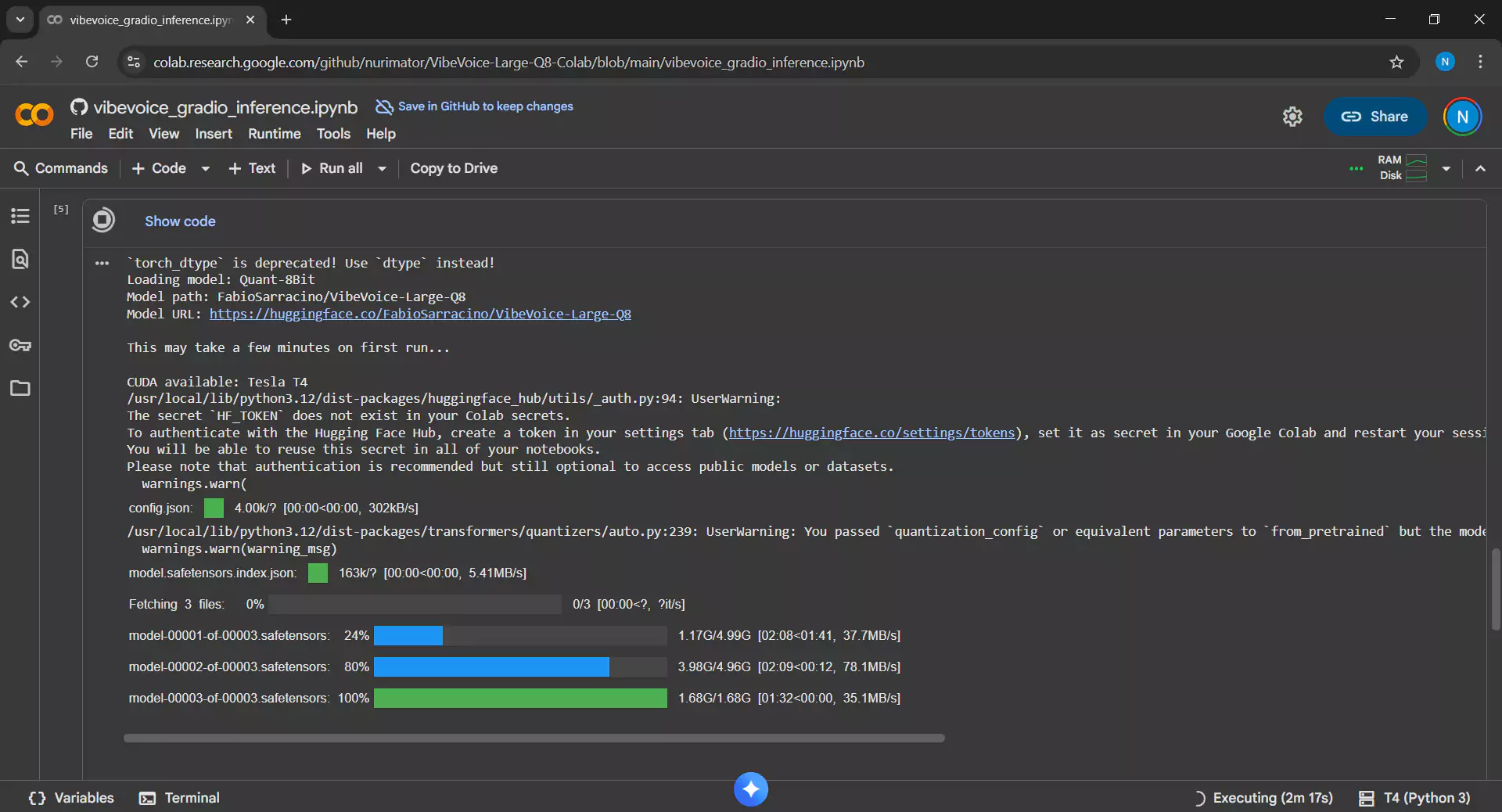
This process takes 5-10 minutes as it will perform the following tasks:
- Download the VibeVoice Large Q8 model approximately 11.6 GB in size
- Install all required dependencies
- Set up the inference environment
5. Accessing the Gradio Interface
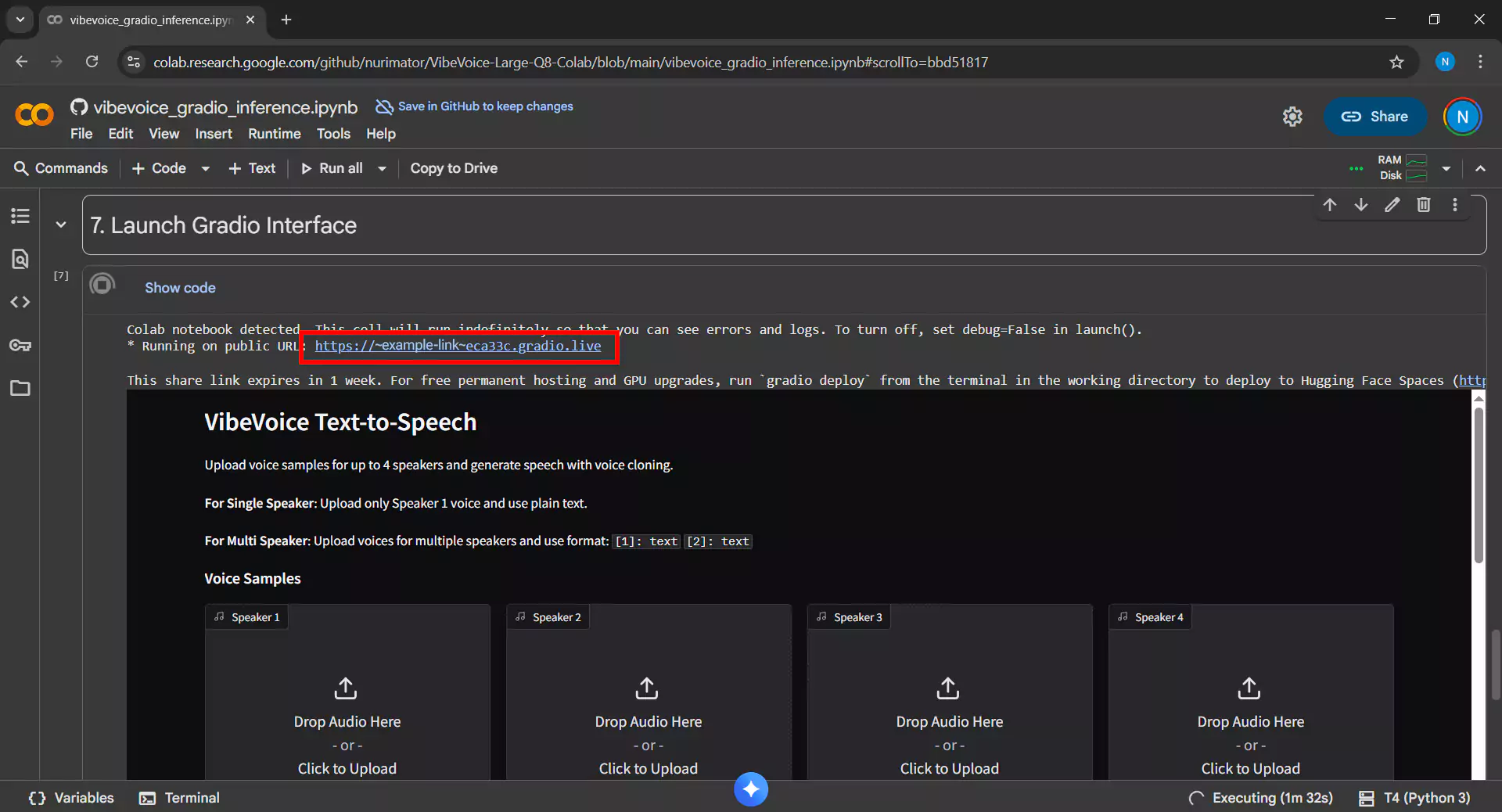
After all cells run without errors, a Gradio link will appear in the last cell output with a format like https://xxxxx.gradio.live. Click that link to open the VibeVoice interface in a new browser tab.
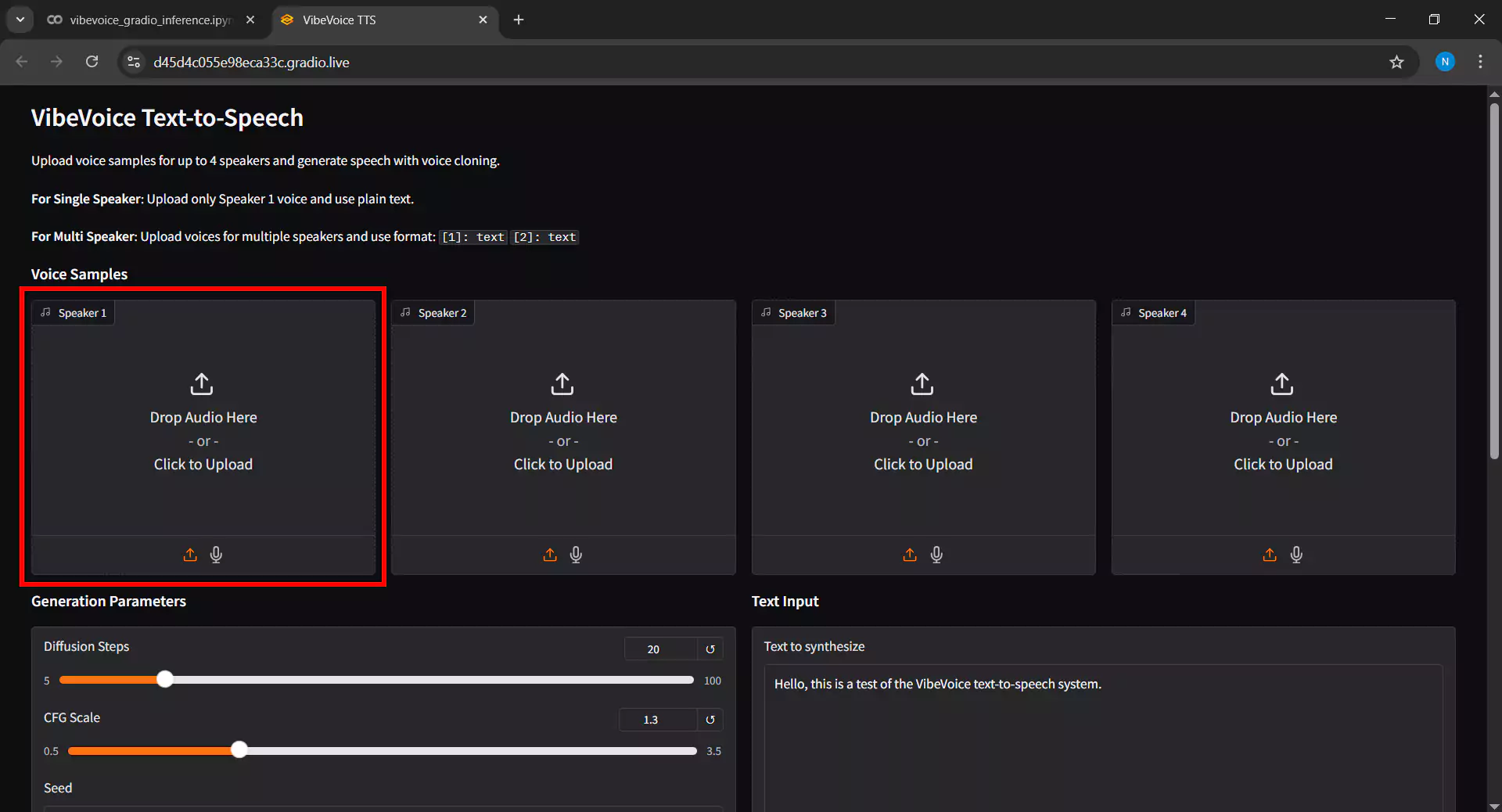
6. Uploading Voice Samples
In the Gradio interface, the first step is to upload voice samples as reference audio by following these steps:
- Click the Upload button in the Voice Sample section
- Select an audio file in WAV or MP3 format from your device
- Tip: For best results, use high-quality audio with at least 16kHz sampling rate and 10-30 seconds duration
- For single speaker, upload 1 voice sample file
- For multi-speaker, upload multiple files according to the number of desired speakers
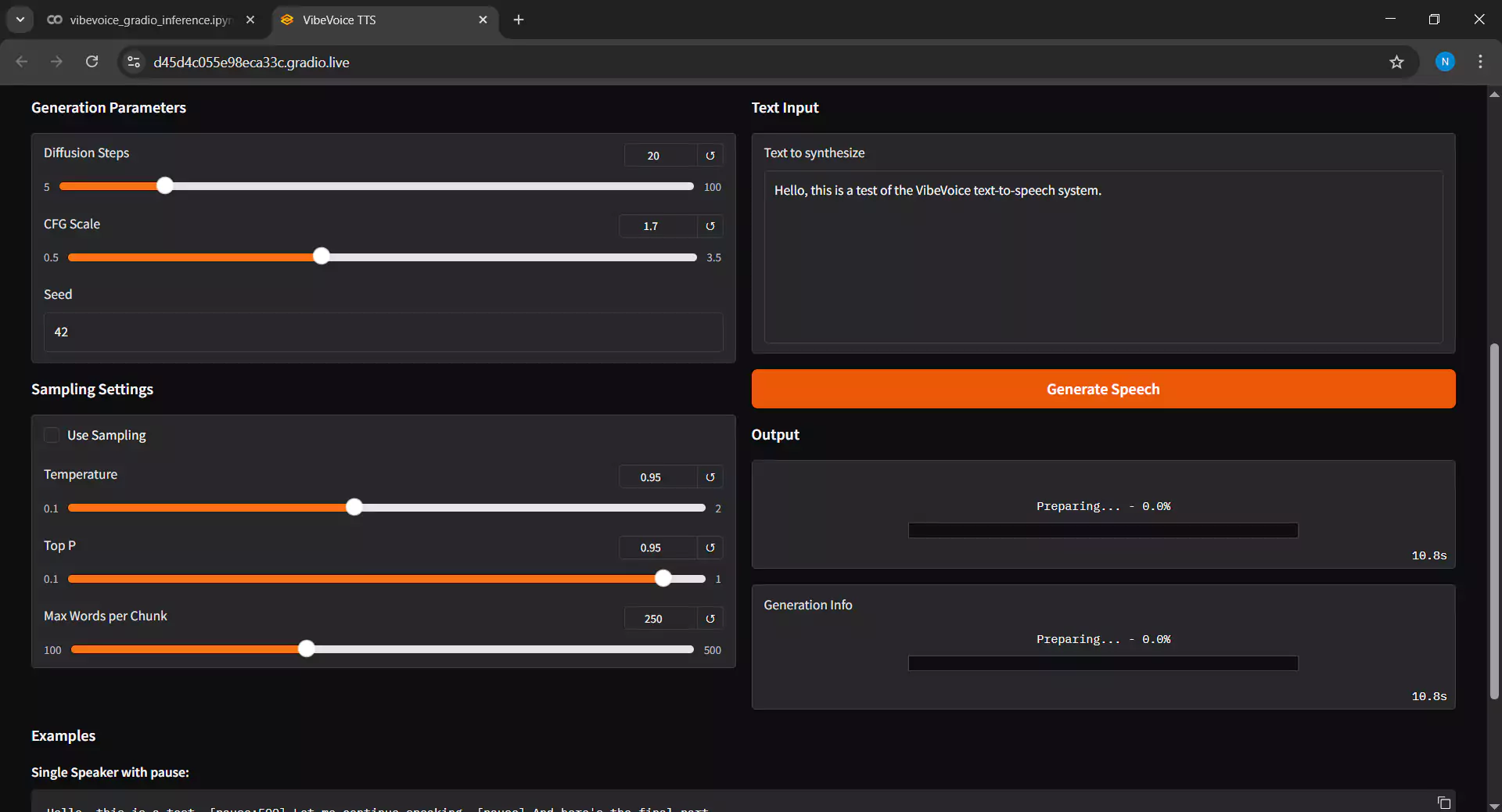
7. Configuring Inference Parameters
Adjust the settings in the Inference Settings section as follows:
- Diffusion Steps: Higher values will produce better quality but longer inference time. We suggest keeping it at the default value of 20.
- Guidance Scale: Controls how closely the output matches the reference voice sample. If the result sounds unstable, increase the value above 2.0.
- Input Text: Enter the dialogue text you want to convert to audio. The text supports almost all languages, but note that the model performs better when the text language matches the voice sample language.
- Click Submit to start the inference process
8. Waiting for Inference Process
Wait for the inference process to complete. The time required depends on several factors:
- Input text length, where short text requires 1-5 minutes
- Selected diffusion steps value
- Complexity of the generated audio
The progress bar will show the inference progress.
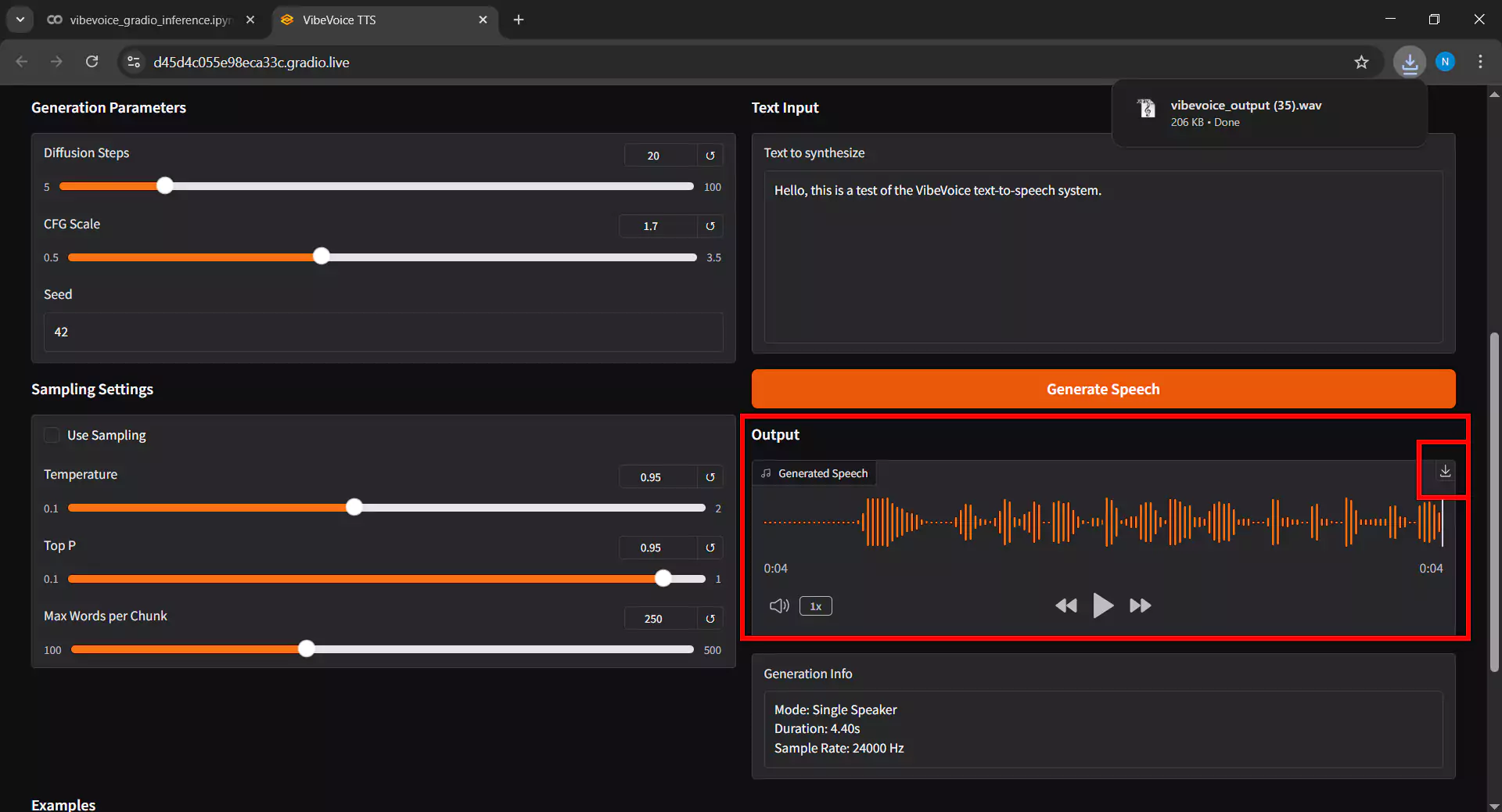
9. Playing and Downloading Audio
After inference is complete, follow these steps:
- The generated audio will appear in the Output Audio section
- Click the play button to listen to the result
- If satisfied with the result, click the Download button to save the audio file to your device
- The output format is typically high-quality WAV
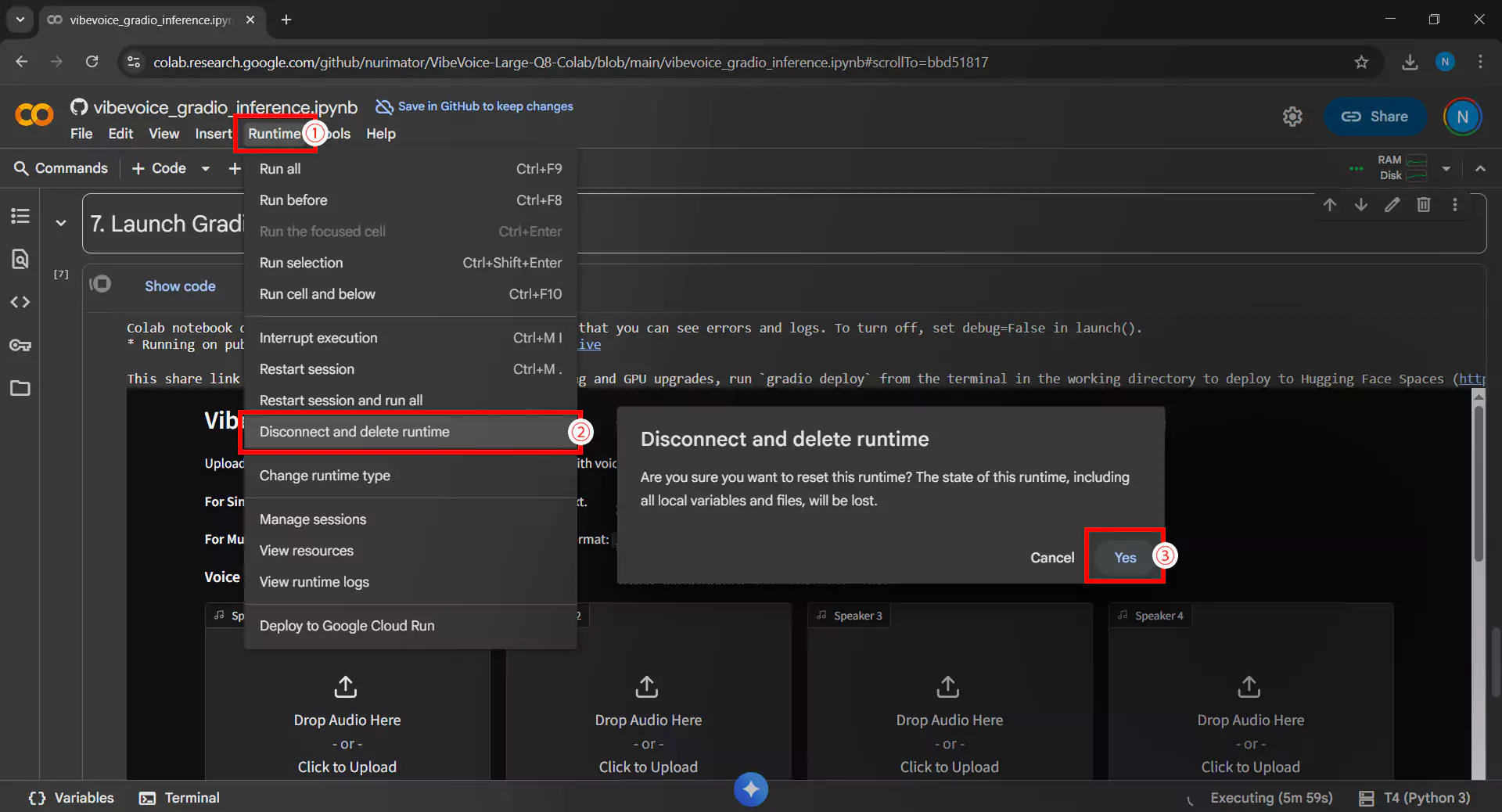
10. Closing the Runtime
After finishing using VibeVoice, it is essential to disconnect the runtime by following these steps:
- Click the Runtime menu then Disconnect and delete runtime
- Or click the RAM/Disk icon in the upper right corner, then select Disconnect
It’s important to remember that this step prevents wasting the free GPU quota from Google Colab and allows other users to utilize these resources.
Conclusion
By leveraging Google Colab, you can access VibeVoice text-to-speech technology for free without expensive hardware investment. Although the free tier has GPU usage time limitations of a few hours per day, this is more than sufficient for experimenting and generating high-quality multi-speaker conversational audio.
Always use synthetic voice technology ethically and responsibly. Avoid using it for deepfakes, fraud, or purposes that harm others. We hope this guide is helpful, and happy creating with VibeVoice on Google Colab!