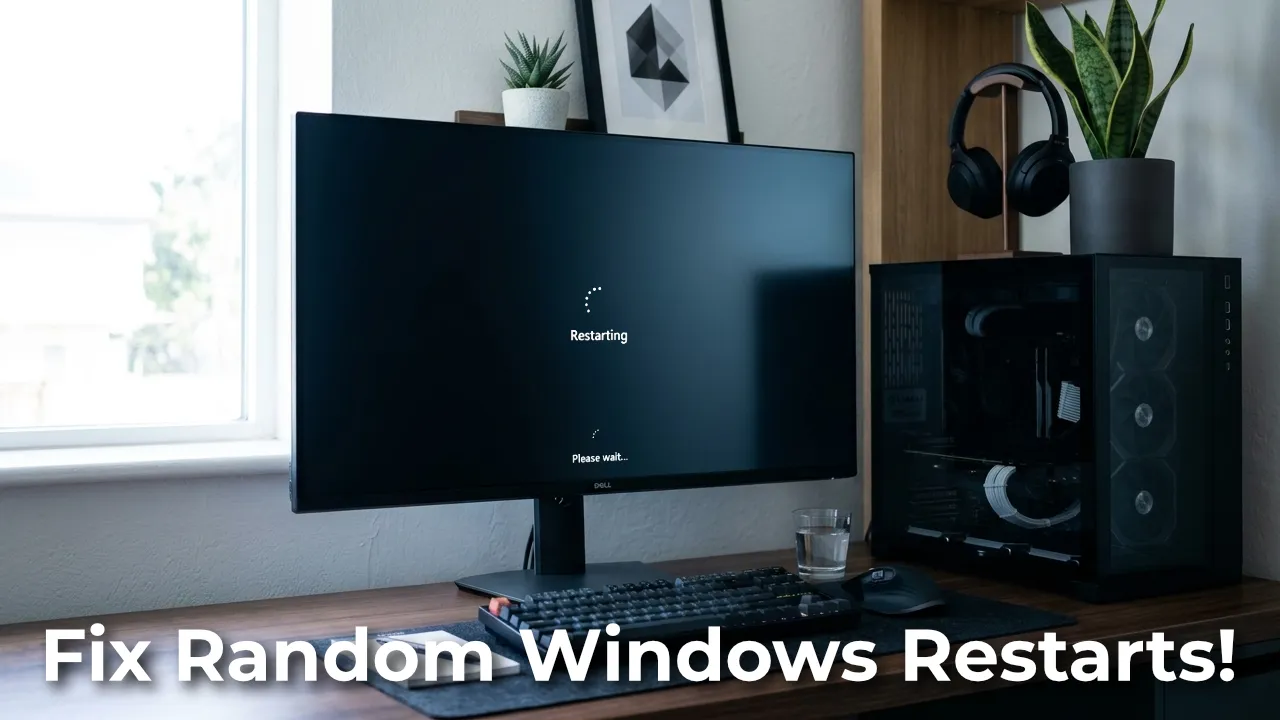
Have you ever been busy working, typing a report, playing a game, or even just browsing the web, and then suddenly the screen goes black for a moment and the computer restarts itself? There is no Blue Screen of Death (BSOD), no error notification, no pop-up warning whatsoever. The computer simply shuts down briefly and turns back on as if nothing happened.
For many Windows 10 and Windows 11 users, this situation is highly confusing and frustrating. You might have tried scanning for viruses, doing basic driver updates, or even reinstalling Windows, but the problem keeps appearing at unexpected times. What makes it even harder to solve is the absence of any clear error trace, making us feel like we are fumbling in the dark searching for the cause.
This article will comprehensively discuss why this happens, what Windows is actually doing behind the scenes during that sudden restart, and the most effective way to truly discover the root of the problem, rather than just guessing.
Common Case Studies Experienced by Many People
Before diving into the technical discussion, let’s look at some common scenarios that might feel familiar to you.
- A gamer complains that their PC suddenly restarts every time they play heavy games for thirty to sixty minutes. The CPU and GPU temperatures look normal on the monitoring software, the VGA driver is on the latest version, but the restarts still happen without any error message.
- An office worker finds their laptop restarting on its own while on a video call or opening many browser tabs at once. No crash report appears, and the Event Viewer looks completely normal without any suspicious entries.
- A PC owner who just upgraded their RAM or SSD suddenly finds their PC restarting randomly, even though it was fine before. There’s a suspicion that there is a problem with the new component, but they don’t know how to confirm it.
The commonality in all the above cases is the lack of visual information when the crash occurs. However, behind that seemingly silent restart, Windows is actually still recording something, it’s just that the record is stored in a format that cannot be directly read by an ordinary user.
Why Windows Doesn’t Show Notifications When a Crash Occurs
By default, many modern Windows systems, especially those pre-configured by laptop manufacturers or through specific settings, are set to automatically restart immediately when a kernel error occurs, without showing the Blue Screen of Death or Black Screen of Death first. This feature is actually intended to shorten user downtime, but the side effect is that the user has absolutely no idea what just happened.
The most common causes of such silent crashes usually revolve around the following things:
- Problematic hardware drivers, especially VGA drivers, chipsets, or USB and audio devices that are corrupt or incompatible with the current version of Windows.
- Component overheating. Although it’s not always visible in regular monitoring software, extreme thermal throttling can trigger a forced shutdown of the system.
- Issues with RAM or storage, where a failing RAM module or SSD/HDD experiencing bad sectors can trigger a kernel panic.
- Third-party software conflicts, such as additional antivirus programs, virtualization software, or overclocking tools running at the kernel level.
- Unstable power supply, especially on desktop PCs with a PSU whose quality has degraded over time.
The problem is that all five of these possibilities can produce the exact same symptom, which is a sudden restart without warning. Without the right tools, we can only guess and try solutions randomly, which is certainly time-consuming and often doesn’t solve the root cause.
The Important Fact: Windows Actually Still Records the Crash
This is a part that is rarely known by many people. Even though there is no visual notification at all, Windows automatically creates a crash dump file, usually in a .dmp format, every time a kernel error occurs, which is stored in a system folder like C:\Windows\Minidump. This file contains in-depth technical information about what was happening in the system memory right before the crash, including which driver or process is the likely culprit.
The issue is that these .dmp files are written in a highly technical binary format and cannot be read directly by ordinary people. Analyzing them manually usually requires specialized debugging tools like WinDbg from Microsoft, which unfortunately has a steep learning curve and is not friendly to non-technical users.
Fortunately, there is a solution that is much easier to use.
Solution: Use WhoCrashed to Uncover the Cause of the Crash Automatically
One of the most popular and effective tools to uncover the cause of crashes and these mysterious auto-restarts is WhoCrashed, developed by Resplendence Software. This tool is specifically designed to read and translate Windows crash dump files into reports that are easy to understand, without needing any debugging skills at all.
Official Download Link
You can download WhoCrashed directly from the official developer’s website at:
https://www.resplendence.com/whocrashed
It is recommended to always download from this official domain to avoid fake installers or unwanted bundled software on third-party mirror sites.
Key Features of WhoCrashed
Automatic crash dump analysis
This tool scans .dmp files stored on your system and instantly translates them into highly readable reports without needing to type any commands. A process that usually requires complex debugging tools like WinDbg can now be done just by opening the application and pressing the scan button.
Identifying the driver causing the crash
WhoCrashed can specifically point out which driver or kernel module is most likely causing the crash, complete with the file name, the manufacturer’s name, and a brief description of the module suspected of causing the trouble. This information is far more helpful than simply knowing the system experienced an error without knowing its source.
Follow-up recommendations
If the crash points towards a potential hardware issue, WhoCrashed will provide preliminary guidance on which direction your troubleshooting should take, so you don’t have to guess the next steps yourself.
Crash dump status detection
This tool can detect whether the crash dump recording feature on your system is enabled or not. If it turns out it hasn’t been enabled, WhoCrashed will inform you and guide you on how to activate it so that subsequent crashes can be properly recorded and analyzed further.
Supports various versions of Windows
WhoCrashed supports everything from Windows 11, Windows 10, up to Windows Server versions, making it suitable for both personal PCs and office computers without worrying about compatibility issues.
What to Do After Getting Information from WhoCrashed
After running WhoCrashed and getting the analysis report, the next steps will be much more targeted than just blind guessing.
- If the cause is a specific driver, you can immediately look for the latest update for that driver on the manufacturer’s official website, or try rolling back to the previous driver version if the problem only appeared after a recent update.
- If the detected driver turns out to be from a third-party software, such as an additional antivirus program, overclocking tool, or virtualization application, try uninstalling it temporarily to see if it is indeed the cause.
- If the generated report points to a possible hardware problem like RAM or storage, proceed to check using hardware diagnostic tools like Windows Memory Diagnostic, or check the health of your SSD and HDD using specialized monitoring software.
- If the crash dump feature is not active on your system, enable it first according to the guide provided by WhoCrashed, then wait until the next crash occurs so it can be analyzed with more complete data.
With an approach like this, the troubleshooting process becomes much more efficient because you are no longer blindly swapping components or reinstalling things, but directly targeting the actual root of the problem.
Conclusion
A sudden restart without notification might feel like a mystery, but Windows actually always leaves a trail behind the scenes in the form of a crash dump. The problem merely lies in how to read that trail into information that can be understood and acted upon. With the help of a tool like WhoCrashed, a process that used to be complicated and full of guesses can now be done with just a few clicks, allowing you to quickly find a permanent solution and return to using your computer in peace.